
Description
The Document Camera, also known as a Doc Cam or Elmo, is available in all standard classrooms and most specialty classrooms. Use the Room Technology List to find out if a document camera has been installed in your classroom. The Room Technology List will also provide basic information on document camera functionality.
Step-by-step guide
Power On and Display
- On the document camera, select the Power button.
- On the document camera, select the Doc Cam button.
- On the room controller, select Projector on.
- On the room controller, select Doc Cam or VGA from the input options.
Making adjustments with the Doc Cam
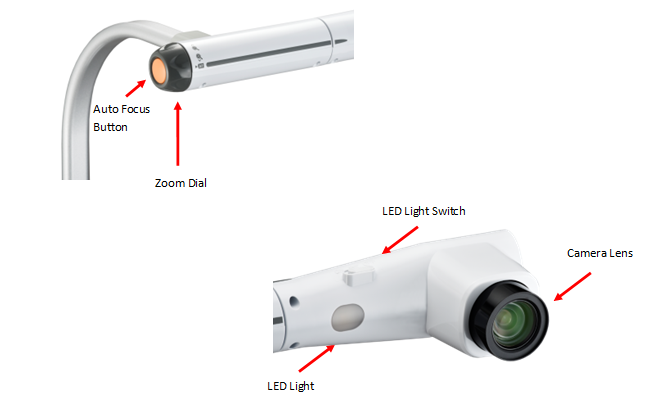
- Brightness: Press the up arrow for a brighter image or the down arrow for a darker image.
- Image Size: Place the object on the stage and then adjust the Zoom dial on the Doc Camera.
- Focus: Press the orange Automatic Focus button on the main unit.
- Illumination Lamp: Slide switch to turn the lamp on and off.
Power Down
- Turn off the Doc Cam.
- Press the Projector Off button on the Projector Controller.
Classroom Support
Critical: ITS Service Desk 604.527.5333
General: Service Desk 604.527.5330 or servicedesk@douglascollege.ca