Description
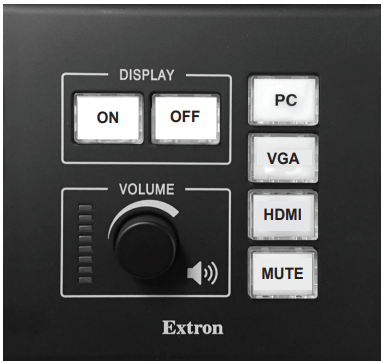
Standard computer labs are equipped with a dedicated Projector Controller, PC, a Document Camera and HDMI connectivity for a laptop. HDMI cable is not provided. The Projector Controller is used to power on the projector and select the source (such as a computer or document camera) to be displayed.
Step-by-step guide
Display the PC
- Turn on the classroom computer
- Sign in using your College Network Access (CNA) username and password.
- On the room controller, select Projector On.
- On the room controller, select PC.
Display the Document Camera
- On the document camera, select the Power button.
- On the document camera, select the Doc Cam button.
- On the room controller, select Display On.
- On the room controller, select VGA or Doc Cam.
- See the Related Articles section on this page for more information.
Display a Laptop
- Turn on the laptop.
- Connect your HDMI cable to the laptop and the classroom HDMI input.
- On the room controller, select Display On.
- On the room controller, select HDMI or Laptop.
- See the Related Article section on this page for more information.
DVD or Blu-ray
DVD and Blu-ray players with set-up instructions are available through the Douglas College Library.
Power Down
- Sign out of the classroom computer.
- Turn off the projector: select the OFF button on the Projector Controller (Button no longer illuminates).
Full List
S Building
S1640 S1711 S1715 S1717 S3720 S3805
N Building
N4208 N5105 N5107 N5109 N5111 N6105 N6107 N6109 N6111
A Building
A1080 A2030 A2110 A2130 A2190 A2270 A2290
Classroom Support
Critical: ITS Service Desk at 604.527.5333
General: ITS Service Desk at servicedesk@douglascollege.ca