Description
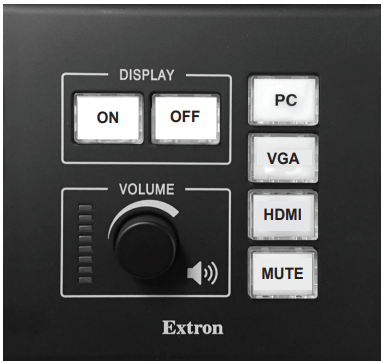
Standard classrooms are equipped with a dedicated Projector Controller, PC, a Document Camera and HDMI connectivity for a laptop. HDMI cable is not provided. The Projector Controller is used to power on the projector and select the source (such as a computer or document camera) to be displayed.
Step-by-step guide
Display the PC
- Turn on the classroom computer
- Sign in using your College Network Access (CNA) username and password.
- On the room controller, select Projector On.
- On the room controller, select PC.
Display the Document Camera
- On the document camera, select the Power button.
- On the document camera, select the Doc Cam button.
- On the room controller, select Display On.
- On the room controller, select VGA or Doc Cam.
- See the Related Articles section on this page for more information.
Display a Laptop
- Turn on the laptop.
- Connect your HDMI cable to the laptop and the classroom HDMI input.
- On the room controller, select Display On.
- On the room controller, select HDMI or Laptop.
- See the Related Article section on this page for more information.
DVD or Blu-ray
DVD and Blu-ray players with set-up instructions are available through the Douglas College Library.
Power Down
- Sign out of the classroom computer.
- Turn off the projector: select the OFF button on the Projector Controller (Button no longer illuminates).
Full List
S Building
S0602 S0630 S0640 S0650 S0660 S0670 S0680 S0690 S1614 S1620 S1650 S1670 S1711 S1714 S1715 S1717 S1802 S1806 S1808 S1809 S1811 S1812 S1814 S3805 S3820 S3825 S3902 S3903
N Building
N1119 N1220 N1222 N1231 N3302 N3406 N3407 N3408 N3409 N3410 N3411 N3412 N3417 N3419 N3460 N4211 N4211A N4212 N4213 N4215 N4217 N4219 N4221 N4221A N4223 N4303 N4305 N4306 N4307 N4308 N4309 N4310 N4312 N4360 N4370
A Building
A1110 A1130 A1150 A1170 A1190 A1226 A1230 A1250 A1303 A2040 A2050 A2070 A2081 A2100 A2143 A2163 A2280 A2310
B Building
B2010 B2030 B2040 B2050 B2070 B2090 B2110 B2120 B2130 B2150 B2170 B2210 B2250 B2290 B2320 B2330 B2340 B2350 B2370
C Building
C1002 C1003 C1004 C1005 C1006 C1007 C1008 C1009 C1011 C1012 C1015
D Building
D1019 D1020 D1022 D1023 D2008 D2009 D2023 D2024
Anvil
607 608 609 624 625 626 707 708 711 712 722 907 908
Classroom Support
Critical: ITS Service Desk at 604.527.5333
General: ITS Service Desk at servicedesk@douglascollege.ca